

Educational institutions face an increasingly complex challenge: providing secure, efficient access to computing resources across campuses, remote learning environments, and hybrid workspaces. PC remote programs have transformed from a convenience into a critical infrastructure component, enabling everything from distance education delivery to centralized IT management across multiple facilities.
The technology landscape in 2026 offers educational decision-makers an unprecedented array of remote desktop solutions, each with distinct capabilities suited to different institutional needs. Small colleges managing a single computer lab face entirely different requirements than multi-campus universities supporting thousands of concurrent remote sessions. Understanding these differences matters because the wrong choice can lead to budget overruns, security vulnerabilities, or frustrated end users who abandon the system entirely.
Canadian educational institutions benefit from a mature ecosystem of remote access solutions specifically adapted to local compliance requirements, including privacy legislation and cross-provincial data residency considerations. The shift toward cloud-based infrastructure has accelerated this evolution, with major providers now offering purpose-built education licensing models that significantly reduce total cost of ownership compared to traditional perpetual licenses.
Three core applications drive remote desktop adoption in education today. Distance learning programs depend on reliable access to specialized software that students cannot install locally, from engineering simulation tools to graphic design suites. IT departments use remote management capabilities to maintain hundreds or thousands of endpoints without physically visiting each device. Administrative staff require secure off-campus access to student information systems and financial databases that must remain compliant with strict privacy regulations.
Selecting the right remote access solution requires balancing technical capabilities, security requirements, user experience, and budget constraints. This guide examines the leading PC remote programs available in 2026, providing practical evaluation criteria and implementation strategies tailored specifically to educational environments.
Understanding Remote Desktop Technology in Educational Settings
Remote desktop programs are software solutions that allow users to access and control a computer from a different physical location, as though they were sitting directly in front of it. Unlike basic screen sharing tools that simply display what’s happening on a screen, genuine remote desktop solutions transmit the entire desktop environment, applications, files, system resources, to the remote user’s device while processing the actual computing workload on the host machine.
This architectural difference matters tremendously in educational settings. When a student connects to a campus workstation via remote desktop software, they’re not just viewing screenshots. They’re running applications on institutional hardware, accessing licensed software through the school’s agreements, and working within the security perimeter of the campus network. The student’s laptop or tablet becomes essentially a window into a more powerful machine located in a computer lab or data centre.
The technology relies on specialized protocols that compress screen information, keyboard inputs, and mouse movements into efficient data streams. Schools implementing these solutions gain three critical advantages: performance consistency regardless of student device capabilities, centralized control over software and security configurations, and the ability to provide equitable access to expensive applications.
- RDP (Remote Desktop Protocol)
- Microsoft’s proprietary protocol for remote connections, widely used in Windows-based educational environments for its native integration and reliability.
- VDI (Virtual Desktop Infrastructure)
- A system that hosts individual desktop environments on centralized servers, allowing each student to access a personalized virtual machine with their settings and files.
- Session Hosting
- An approach where multiple users share a single server instance, each running applications in isolated sessions, cost-effective for institutions with standardized software needs.
- Remote Access Protocols
- The underlying communication standards (like RDP, VNC, or proprietary protocols) that determine how data travels between the user’s device and the remote system.
Understanding these distinctions helps IT decision-makers choose solutions that match their institution’s specific requirements. A college offering engineering courses needs the graphics performance of VDI for CAD software, while a primary school might find session hosting perfectly adequate for web-based learning tools and word processing.
The shift to remote desktop infrastructure represents a fundamental change in how educational institutions provision computing resources. Rather than maintaining hundreds of individual workstations that require constant updates and replacement cycles, schools can centralize computing power and extend access far beyond physical campus boundaries.
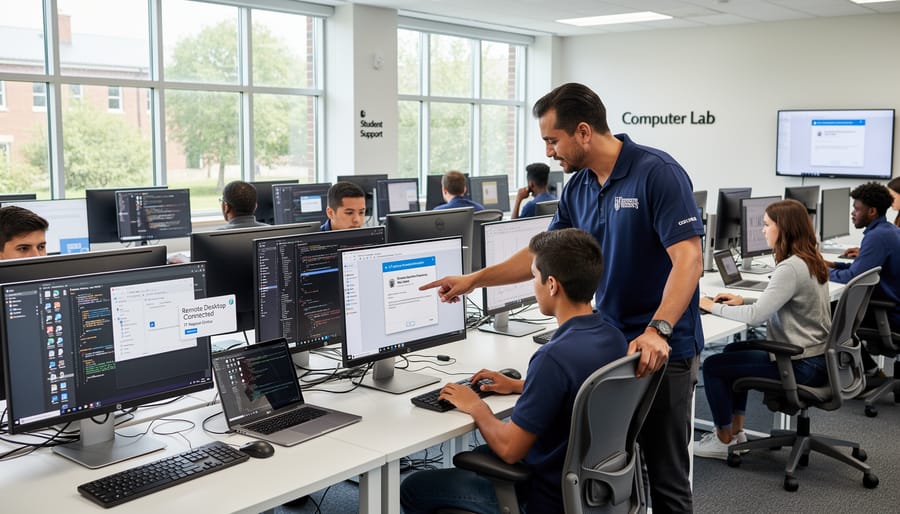
The Educational Use Cases Driving Remote Desktop Adoption
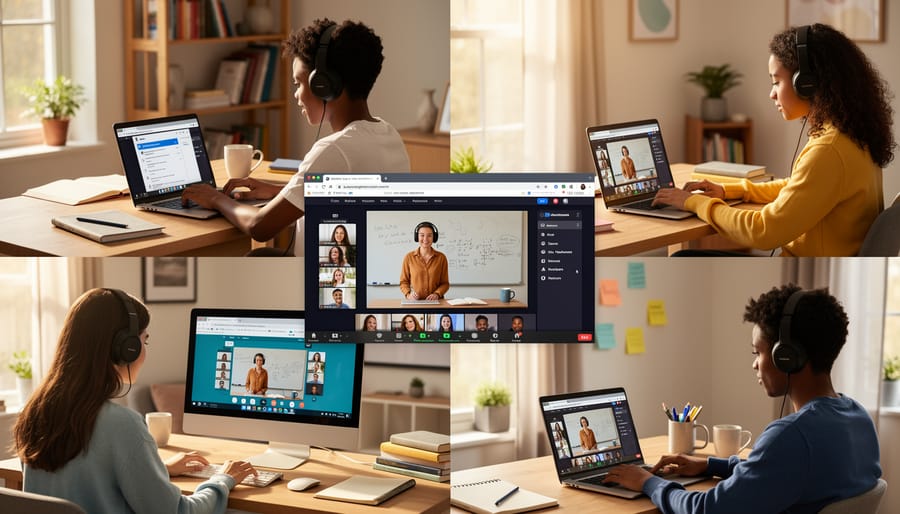
Supporting Distance and Hybrid Learning Models
Remote desktop programs have become indispensable for institutions managing distance and hybrid learning environments in 2026. Students now access everything they need, from engineering applications requiring significant processing power to campus-specific databases and research tools, without stepping foot on campus. A student living three provinces away can run the same AutoCAD installation as someone in the computer lab, working on identical hardware resources through a simple internet connection.
The technology proves particularly valuable when delivering virtual desktops for students who switch between home and campus locations throughout the term. Rather than maintaining separate work environments or transferring files constantly, they log into the same desktop from any device, a laptop at home, a tablet in a café, or a campus workstation during office hours. Their projects, settings, and file structures remain identical regardless of location.
This consistency eliminates common technical barriers that plague hybrid learners. Students using older personal computers can access resource-intensive applications that would otherwise require expensive hardware upgrades. A four-year-old laptop becomes a gateway to professional-grade software, levelling the playing field between students with different financial resources. IT departments benefit too: they deploy software updates once to the central infrastructure rather than troubleshooting installation issues across hundreds of individual devices.
Administrative and IT Management Efficiency
For educational IT departments managing infrastructure across multiple buildings or campuses, remote desktop programs deliver measurable efficiency gains that translate directly to cost savings and improved service delivery. The centralized management model inherent to these solutions eliminates the traditional need to physically visit each workstation for routine tasks.
Software deployment becomes a single-operation process. Instead of imaging hundreds of individual machines or coordinating staggered rollouts across campus locations, IT teams push updates, patches, and new applications to centralized servers or virtual desktop pools. Students and faculty receive the updated environment immediately upon next login, regardless of their physical location.
Troubleshooting shifts from reactive site visits to proactive remote diagnosis. When a student reports application crashes or performance issues, technicians can connect directly to that virtual session, observe the problem in real time, and implement fixes without travel time or scheduling delays. This responsiveness reduces ticket resolution times from hours to minutes.
Hardware refresh cycles extend considerably when processing happens server-side rather than on aging endpoint devices. A 2019 laptop can access resource-intensive applications through a remote desktop connection to a current-generation server, deferring replacement costs and reducing electronic waste across the institution’s entire device inventory.
Enabling Access to Specialized Applications
One of the most compelling advantages of remote desktop programs in education is democratizing access to resource-intensive applications. Engineering students can run AutoCAD or SolidWorks from budget laptops. Statistics majors connect to workstations running SPSS or SAS without purchasing individual licenses costing thousands of dollars. Graphic design programs can access Adobe Creative Cloud or Cinema 4D on institutional servers rather than requiring personal machines with dedicated GPUs.
This centralized approach transforms the economics of specialized education. A single floating license pool serves dozens of students who access the software remotely when needed, rather than requiring each student to purchase their own license. The institution maintains control over software versions, ensures consistent environments across all student experiences, and eliminates compatibility issues between different operating systems or hardware configurations.
For institutions with limited budgets, this model extends far beyond cost savings. Students from lower-income backgrounds compete on equal footing with peers who own expensive hardware. A community college in rural Canada can offer the same professional-grade tools as a major university, leveling the educational playing field through strategic remote desktop deployment.
Evaluating PC Remote Programs for Educational Institutions
Enterprise-Grade Solutions
For large universities, multi-campus colleges, and school districts managing thousands of users, enterprise-grade remote desktop solutions offer the scalability, security, and administrative control that educational IT environments demand in 2026.
**VMware Horizon** remains a leading choice for institutions requiring comprehensive virtual desktop infrastructure (VDI). It excels at delivering persistent desktops to faculty and researchers who need consistent personalized environments, while also supporting non-persistent pools for computer labs and student access. The platform’s Unified Access Gateway provides secure external connections without VPN complexity, and integration with existing VMware environments makes it attractive for institutions already invested in this ecosystem. Licensing costs run higher than alternatives, but the granular policy controls and performance optimization justify the investment for research universities and technical colleges.
**Citrix Virtual Apps and Desktops** stands out for its application streaming capabilities, allowing institutions to publish specific programs rather than full desktops. This approach reduces resource consumption and simplifies access to specialized software like MATLAB, AutoCAD, or Adobe Creative Suite. Citrix’s HDX protocol delivers superior performance over limited bandwidth connections, which matters for students accessing campus resources from rural areas or congested residential networks. The platform’s workspace aggregation brings together SaaS applications, virtual apps, and desktops into a unified interface that reduces training needs for both students and staff.
**Microsoft Azure Virtual Desktop** (AVD) has gained substantial traction in Canadian educational institutions leveraging existing Microsoft 365 Education licenses. The multi-session Windows 11 capability reduces infrastructure costs by allowing multiple students to share a single virtual machine. Native integration with Microsoft Entra ID (formerly Azure AD) simplifies authentication and enables conditional access policies based on user location, device compliance, or risk level. For institutions already committed to the Microsoft ecosystem, AVD offers the most seamless deployment path and familiar management tools through the Azure portal.
Mid-Market and Cost-Effective Options
Smaller colleges, individual departments, and budget-conscious institutions often find the sweet spot between functionality and cost in the mid-market remote desktop segment. These solutions deliver robust performance without the licensing complexity or infrastructure overhead of enterprise platforms.
Chrome Remote Desktop stands out for institutions already invested in the Google Workspace ecosystem. It’s free, requires minimal setup, and works seamlessly across Windows, macOS, Linux, and Chromebook environments. The browser-based architecture eliminates client installation headaches, making it ideal for quick faculty access to office workstations or supporting students who need occasional access to specific applications. However, it lacks centralized management tools and detailed access logging that larger IT departments require.
TeamViewer has carved out significant market share in the education sector through its dedicated licensing tiers for academic institutions. The solution offers a more polished experience than Chrome Remote Desktop, with file transfer capabilities, session recording, and multi-monitor support. IT teams appreciate the management console that tracks connections and allows remote device management. TeamViewer’s per-device or concurrent-user licensing can scale from a single department to an entire small college, though costs escalate quickly as usage grows.
AnyDesk presents a compelling alternative with lower pricing and excellent performance over limited bandwidth connections. This makes it particularly valuable for rural institutions or international campuses where network quality varies. The software supports unattended access, making it practical for IT staff managing computer labs or faculty workstations after hours. AnyDesk’s straightforward licensing and lightweight client installation reduce administrative burden compared to more complex enterprise solutions.
Each option requires careful evaluation against specific institutional needs, network infrastructure, and long-term growth plans.
Open-Source and Self-Hosted Alternatives
For educational institutions with capable IT teams and limited budgets, open-source remote desktop solutions offer significant cost savings without licensing fees per user or device. These alternatives require more technical expertise to deploy and maintain but provide complete control over infrastructure and data.
Apache Guacamole stands out as the most mature open-source option in 2026. This clientless remote desktop gateway supports RDP, VNC, and SSH protocols through a standard web browser, eliminating the need for client software installation on student or faculty devices. IT teams can deploy Guacamole on existing Linux servers, integrate it with LDAP or Active Directory for authentication, and customize the interface to match institutional branding. The solution excels at providing secure access to Windows labs, Linux development environments, and terminal servers from Chromebooks or personal devices without browser plugins.
Other viable open-source options include X2Go for Linux environments and TigerVNC for cross-platform access. Schools running primarily Linux infrastructure often find X2Go delivers better performance than commercial solutions for their specific use case.
The trade-off is clear: these solutions demand in-house technical expertise for initial setup, ongoing maintenance, security patching, and troubleshooting. Educational institutions must honestly assess whether their IT team has the bandwidth and skills to manage self-hosted infrastructure reliably. For schools with strong technical staff who value data sovereignty and budget flexibility, open-source remote desktop solutions represent a practical path forward that can scale with institutional needs.
Critical Security Considerations for Educational Remote Access
Educational institutions face unique security challenges when implementing remote desktop solutions because they must protect sensitive student data while providing access to a diverse user base that spans different age groups, technical skill levels, and locations. Unlike corporate environments with uniform security policies, schools and universities must balance accessibility with robust protection.
Student privacy legislation creates strict obligations. In Canada, institutions must comply with provincial privacy acts like PIPEDA or sector-specific regulations such as FIPPA in British Columbia and Ontario’s MFIPPA. These frameworks require explicit consent for data collection, secure storage of personal information, and immediate breach notification. Remote desktop programs that store session data, user credentials, or cached files on third-party servers can create compliance risks if providers host data outside Canada. IT managers should prioritize solutions offering on-premises deployment or Canadian data residency options.
Multi-factor authentication becomes non-negotiable in educational remote access deployments. Simple password protection proves insufficient when credentials are frequently shared, written down, or reused across platforms by students. Implementing MFA through authenticator apps, SMS verification, or hardware tokens adds a critical barrier against unauthorized access, even when passwords are compromised. Some institutions integrate campus ID card systems with remote desktop authentication for streamlined security.
Network segmentation prevents a single compromised remote session from exposing the entire institutional infrastructure. Effective architectures isolate remote desktop servers in dedicated network zones with controlled access to sensitive systems like student information databases, financial records, and research data repositories. This containment strategy limits the potential damage from successful attacks.
Session monitoring and audit logging provide essential oversight. Educational IT teams need visibility into who accessed what resources, when sessions occurred, and which files were transferred. These logs prove invaluable for investigating security incidents, demonstrating regulatory compliance, and identifying unusual access patterns that may indicate compromised accounts.
Regular security updates present particular challenges in educational environments where system downtime disrupts learning. Institutions require remote desktop solutions with flexible update scheduling, the ability to patch vulnerabilities without full system restarts, and tested compatibility with educational software. Partnering with IT solution providers who understand these constraints ensures security maintenance doesn’t compromise availability.
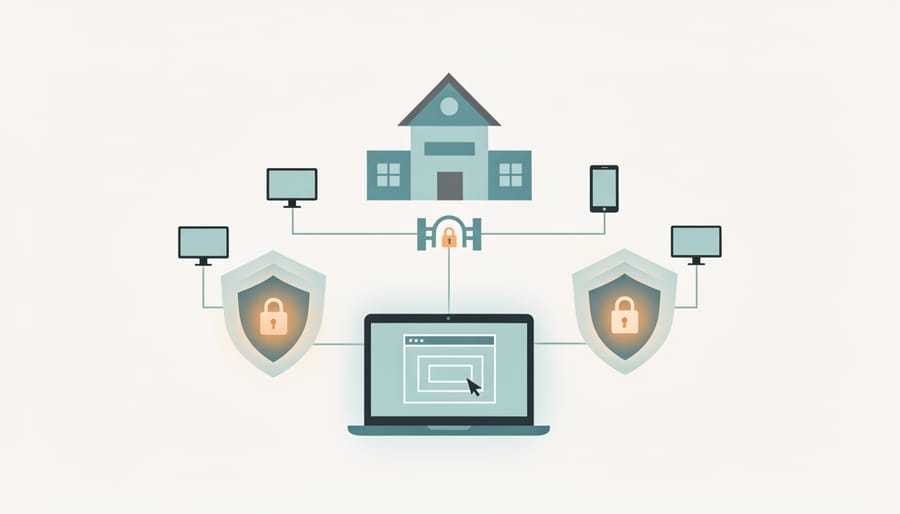
Implementation Best Practices for Educational IT Teams
Rolling out remote desktop infrastructure in educational environments requires structured planning to avoid common pitfalls that can derail adoption and create user frustration. Based on successful deployments across Canadian schools and universities, here’s a systematic approach that addresses both technical requirements and organizational readiness.
Start by conducting a thorough needs assessment that goes beyond simply counting users. Interview department heads to understand which specialized applications students need to access remotely, identify peak usage periods throughout the academic calendar, and document existing hardware constraints across student populations. This groundwork prevents over-provisioning costly resources while ensuring the infrastructure can handle actual demand.
A successful deployment follows this sequence:
- Assess current infrastructure capacity including network bandwidth, server resources, and authentication systems to identify gaps before committing to a specific solution.
- Select a remote desktop solution based on your needs assessment, prioritizing features like session recording for labs, role-based access controls, and compatibility with existing authentication directories.
- Deploy a pilot program with a small group of faculty and students from different departments to test performance under real conditions and gather feedback on usability issues.
- Refine your configuration based on pilot results, addressing bottlenecks in network routing, adjusting resource allocation policies, and streamlining the connection process.
- Develop comprehensive training materials including video tutorials, quick-start guides, and troubleshooting flowcharts tailored to different user roles (students, faculty, IT staff).
- Execute a phased rollout by department or campus rather than institution-wide deployment, allowing your IT team to manage support requests without being overwhelmed.
- Establish clear support channels with documented escalation procedures and set realistic response-time expectations for different issue types.
After launch, implement continuous monitoring of connection quality, session duration patterns, and application performance metrics. Many institutions discover unexpected usage patterns during the first semester that require configuration adjustments. For example, engineering departments might show unexpectedly high evening usage when students work on CAD projects, necessitating adjusted resource allocation.
Document everything from initial configuration decisions to common troubleshooting procedures. Staff turnover in educational IT departments is reality, and institutional knowledge walks out the door without proper documentation. Create runbooks for routine maintenance tasks, disaster recovery procedures, and seasonal scaling adjustments before and after academic breaks.
Consider establishing a remote desktop governance committee with representatives from IT, academic departments, and administration. This group reviews access policies, evaluates new feature requests, and ensures the system evolves with institutional needs rather than becoming rigid infrastructure that frustrates users two years after deployment.
Performance Optimization and Network Infrastructure Requirements
Even the most robust remote desktop solution falters without adequate network infrastructure. Educational institutions implementing PC remote programs must address bandwidth, latency, hardware capacity, and network architecture to deliver the seamless experience students and staff expect in 2026.
Bandwidth requirements vary significantly based on usage patterns. Basic administrative tasks consume roughly 150-300 Kbps per concurrent session, but graphically intensive applications like CAD software or video editing tools can demand 5-10 Mbps per user. A mid-sized campus supporting 500 simultaneous remote desktop sessions for mixed workloads should provision at least 1.5-2 Gbps of dedicated bandwidth. Don’t assume your current internet connection suffices, remote desktop traffic patterns differ markedly from typical web browsing and streaming loads.
Latency presents an equally critical challenge. Round-trip times exceeding 150 milliseconds create noticeable lag that disrupts productivity, particularly for applications requiring precise input like design software or laboratory simulations. Campus networks with aging switches or poorly configured routing introduce unnecessary delays. Prioritizing remote desktop traffic through quality of service (QoS) policies ensures responsive performance even during peak usage periods.
Server-side hardware directly impacts user experience. Oversubscribed virtual desktop infrastructure leads to resource contention, manifesting as slow application launches and stuttering interfaces. Plan for 2-4 vCPUs and 4-8 GB RAM per concurrent desktop session, adjusting upward for specialized workloads. Storage performance matters too, solid-state drives significantly outperform traditional hard disks for hosting user profiles and application data.
Integration with existing campus networks requires careful planning. Many institutions operate segmented networks for administrative systems, student devices, and research labs. Remote desktop solutions must traverse these segments securely without introducing bottlenecks or security vulnerabilities. Firewall rules, network address translation, and authentication systems need coordinated configuration.
Partnering with experienced Canadian IT solution providers who understand educational network architectures proves invaluable during infrastructure assessment. They identify constraints your internal team might overlook and recommend targeted upgrades that optimize performance without unnecessary capital expenditure.
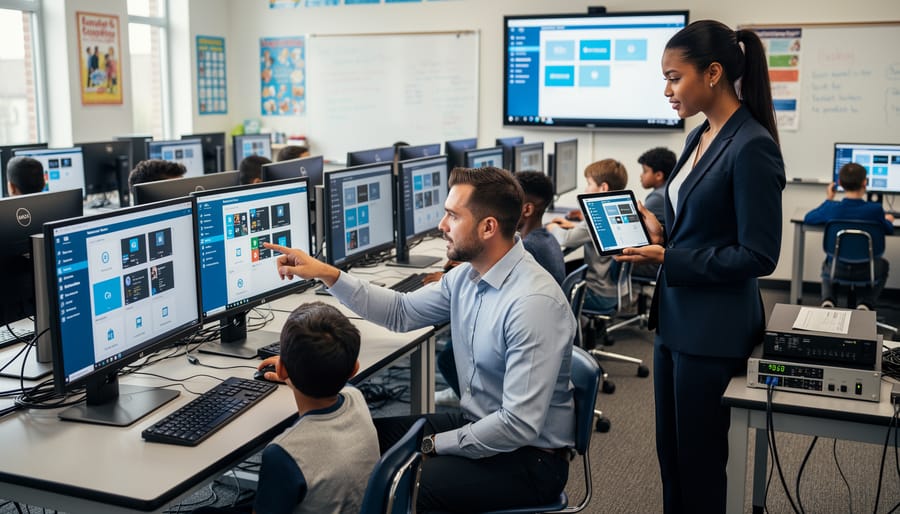
Future-Proofing Educational Remote Desktop Investments
Educational institutions face the challenge of making technology investments that deliver value for years, not just months. When selecting PC remote programs in 2026, IT decision-makers must evaluate solutions through a lens of adaptability and long-term viability.
AI integration represents the most significant shift on the horizon. Leading remote desktop platforms now incorporate machine learning algorithms that predict bandwidth requirements, automatically adjust compression ratios based on network conditions, and pre-load frequently accessed applications. Within the next two years, expect these capabilities to mature into predictive maintenance systems that identify potential performance issues before they impact users. Schools investing in platforms with documented AI roadmaps position themselves to benefit from these advances without replacing infrastructure.
Mobile-first experiences continue to evolve rapidly. While current solutions offer tablet and smartphone access, next-generation interfaces will provide feature parity with desktop clients rather than limited functionality. Educational institutions supporting bring-your-device programs should prioritize vendors demonstrating commitment to mobile development, including native apps that leverage device capabilities like biometric authentication and cellular network optimization.
Learning management system integration marks another critical evolution. Forward-thinking platforms are building direct connections to Canvas, Moodle, and Blackboard, allowing students to launch remote desktop sessions directly from course materials without separate authentication. This seamless experience reduces friction and IT support burden.
Partnership with a technology provider experienced in educational environments proves invaluable when navigating these transitions. Canadian IT solution specialists who maintain relationships with major software vendors can provide early insight into platform roadmaps, helping institutions time upgrades strategically and avoid premature obsolescence. They bring expertise in phased rollouts that introduce new capabilities incrementally without disrupting ongoing operations.
The strategic implementation of PC remote programs has evolved from a convenience to a fundamental requirement for educational institutions navigating the complexities of modern learning environments. As we’ve explored throughout this guide, remote desktop solutions deliver measurable benefits across multiple dimensions: enabling equitable access to specialized resources, streamlining IT operations, reducing infrastructure costs, and supporting the flexible learning models that define education in 2026.
However, the technical and security considerations involved in deploying these systems demand careful planning and expertise. Educational institutions face unique challenges that distinguish their needs from typical enterprise deployments. Student privacy regulations, diverse user populations with varying technical skills, budget constraints, and the requirement for reliable performance across distributed campuses create a complex decision landscape.
Selecting the right remote desktop solution involves balancing competing priorities. Enterprise-grade platforms offer robust security and scalability but require significant investment. Mid-market options provide cost-effectiveness with some trade-offs in features. Open-source alternatives appeal to technically capable teams but demand internal resources for implementation and maintenance.
Canadian educational institutions benefit significantly from partnering with IT solution providers who understand these sector-specific requirements and maintain established relationships with leading technology vendors. The right partner brings more than technical implementation skills; they offer strategic guidance, ongoing support, and the ability to design systems that align with institutional goals while remaining adaptable to future needs.
Your remote desktop infrastructure should serve your educational mission, not constrain it. Invest the time to evaluate your specific requirements, engage stakeholders across departments, and select partners who demonstrate genuine understanding of the educational technology landscape.